Learn more
Your team updates a booking. A timesheet gets rejected. A rate changes on a project you’re tracking. You find out hours later (if you find out at all) because someone forgot to loop you in.
This gap between ‘something changed’ and ‘you knew about it’ is where the plans slip. Slack Integration closes it by sending eResource Scheduler updates straight into the Slack channels, and direct messages your team checks all day anyway.
What this gets you:
You already see these updates in eResource Scheduler the moment a resource, project, or booking changes. That works well when you’re at your desk, watching for it. Slack Integration takes the same updates and sends them straight to Slack instead, so your team catches them wherever they’re already working.
From Administration > Integrations > Slack, you can pick any entity (Resource, Project, or Booking), choose the event that should trigger an alert, and send the result to a specific Slack channel. Filters let you narrow things down a step further. So a busy team only hears about the changes that matter to them.
Each formula runs on its own. So you can set up separate rules for separate teams. A construction lead might want alerts on every requirement assignment. While a finance user only cares about rate changes.
Both can run side by side without stepping on each other.
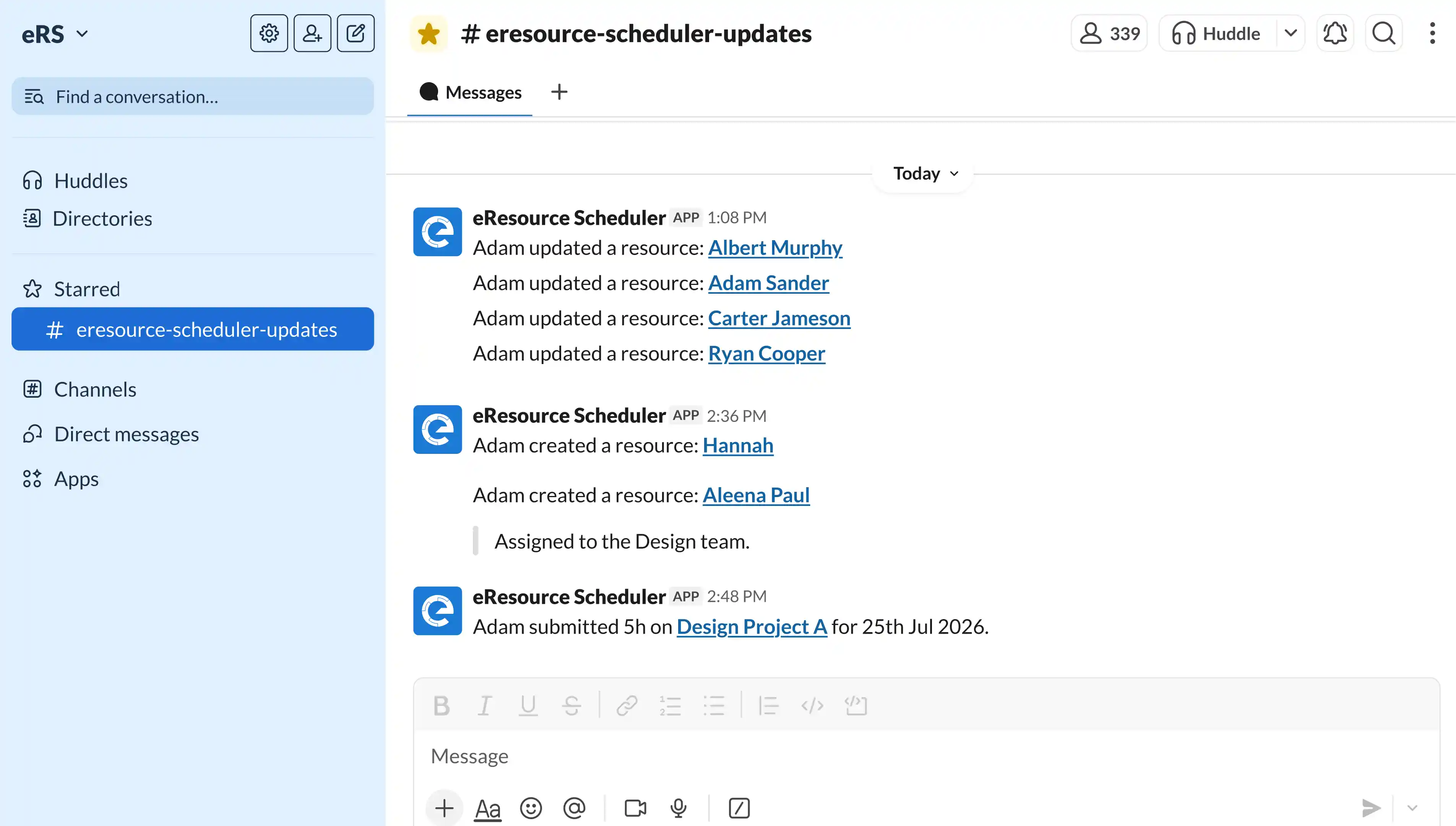
Pro tip: Lock in your entity choice before you write the notification text. Switching entities later clears every message you’ve drafted and loads new defaults in their place.
While admin formulas are running for the whole team, individual users can layer on their own alerts without waiting on anyone.
Admin formulas take care of alerts for the whole team, covering the entities and events that matter most broadly. But not every alert needs to go to everyone. Slack Integration lets you set up your own, personal notifications from your Profile, so you only hear about the bookings, projects, or updates that are actually yours.
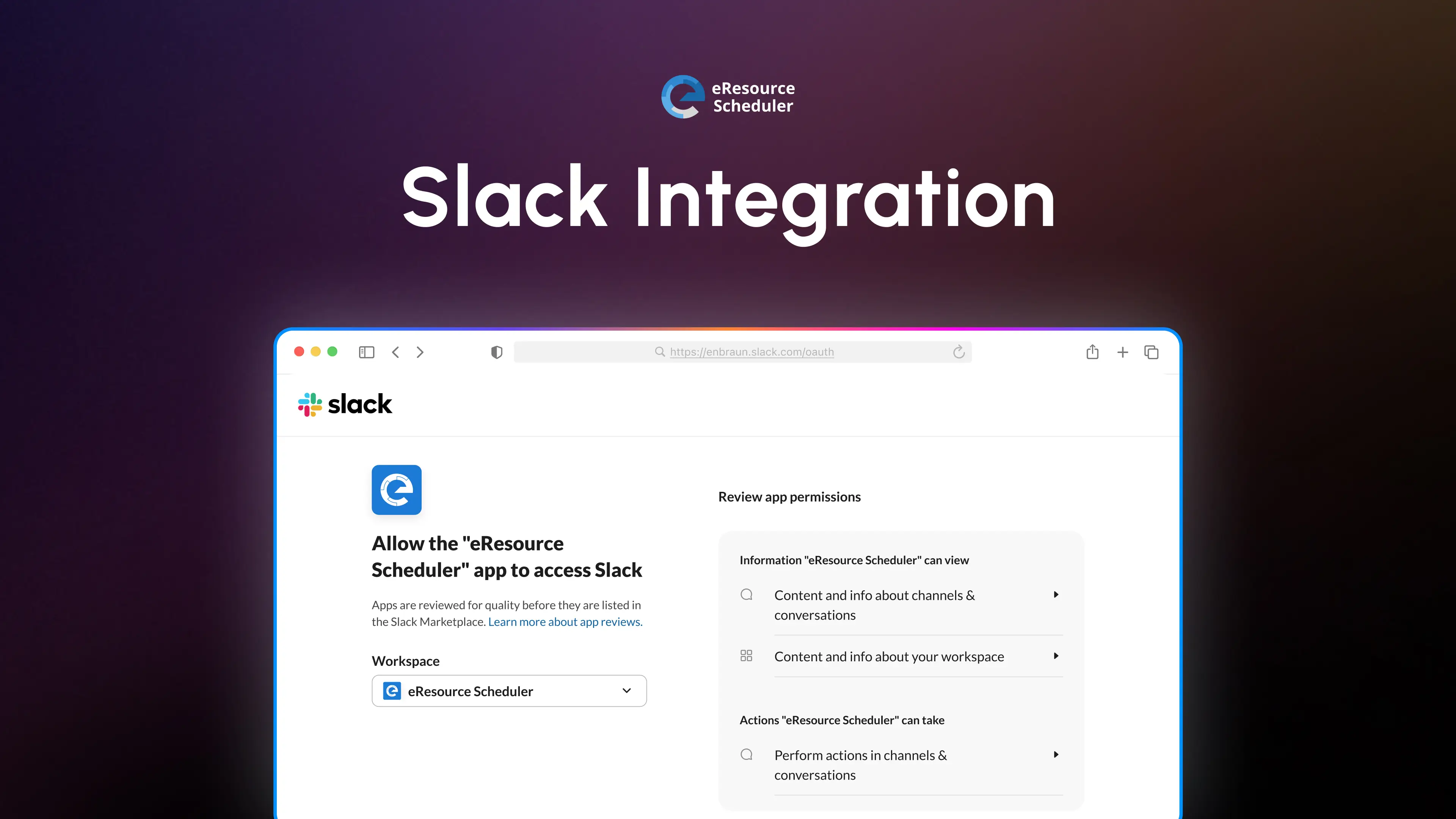
Now, from Profile > Notifications, anyone can connect their own Slack account. Click Connect under Slack Notifications, authorise the workspace, and choose where updates should land (a DM or a channel of your choice). Save it, and you are set.
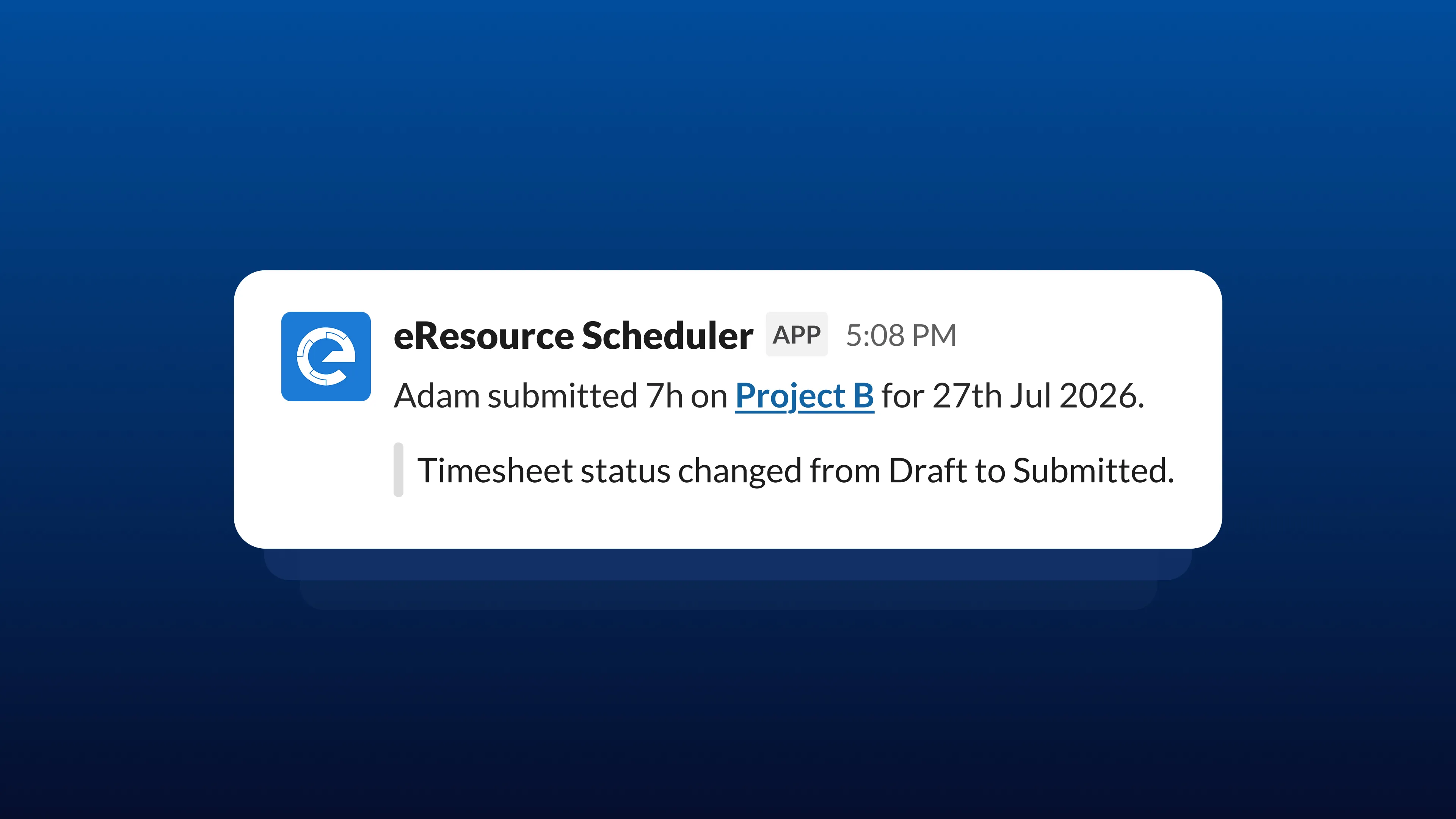
If your setup changes later, you are not locked in. Switching from a direct message to a channel or reconnecting to a different workplace takes the same few clicks as the setup. So your notifications can move with you as your role does.
Heads Up: Profile-level alerts only cover primary entity actions like create, update, and delete. Activity such as resource calendar changes or notes will not trigger a personal alert. If your team needs the depth, an admin formula still handles it.
A few examples of how teams are already putting it to work:
Every minute your team spends digging for updates is a minute they’re not spending on the work itself. Slack Integration puts that information back where they already are, so nothing sits unnoticed in an inbox or a tab nobody opened today.
For the full walkthrough, screenshots, and field reference, check the Configure Slack Integration support article.
 ALL FEATURES INCLUDED