Learn more
You know the moment when someone pings you asking if a task is done and you have to check two places before you can answer? Jira says one thing. Your resource plan says another. Now you are stuck updating one to match the other before you reply.
This gap is now gone. When something changes in Jira, eResource Scheduler already knows. You just answer the question.
Before this, keeping eResource Scheduler up-to-date meant switching tabs every time. You would finish something in Jira, then update the same details in eResource Scheduler. It worked. But it ate time you did not really have.
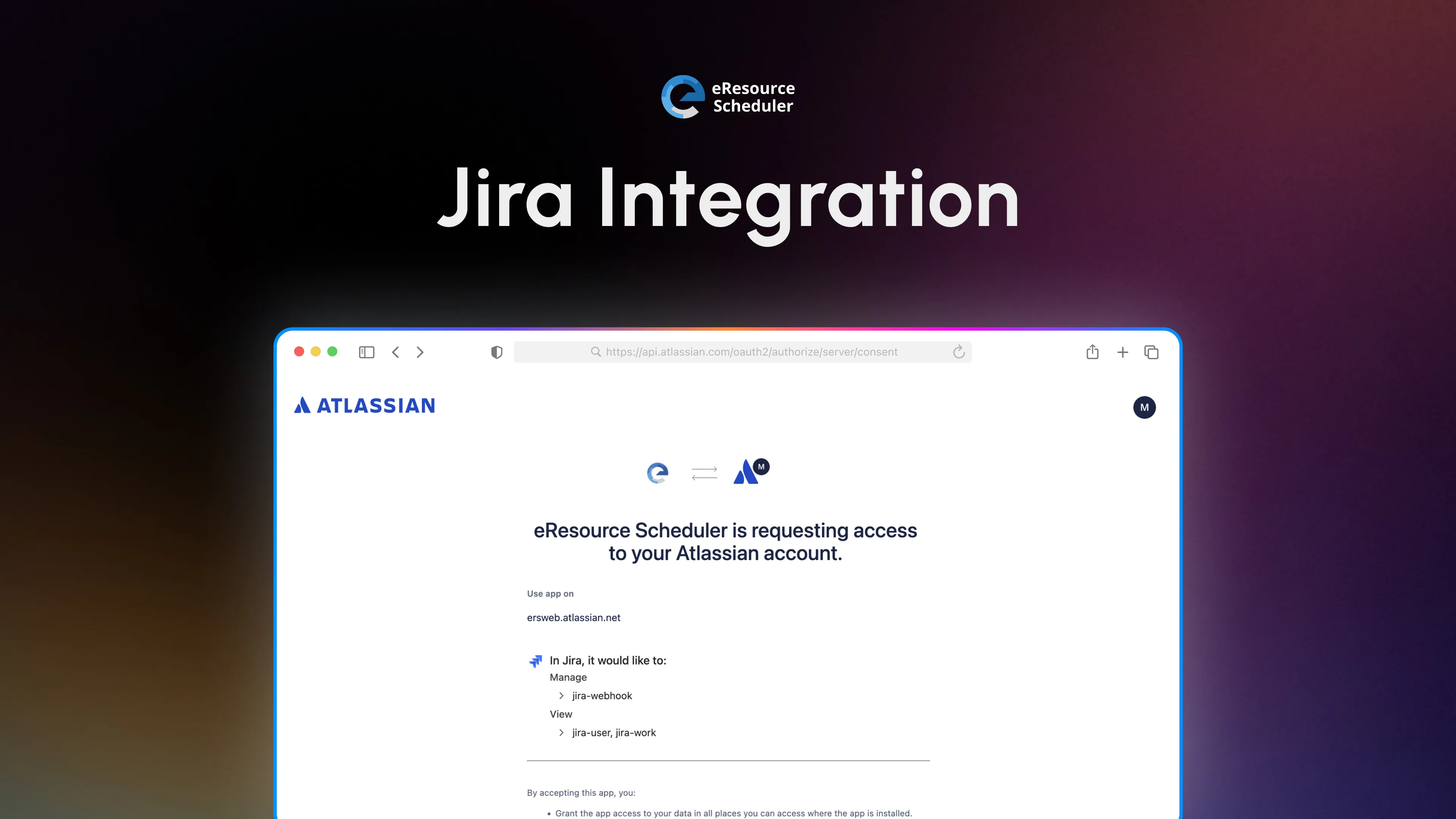
Now you only need to connect the two tools once. Head to Administration > Integration > Jira. Open the setup wizard in eResource Scheduler, add your Jira account, and approve the access it asks for. Once this is done, eResource Scheduler knows where to look for your work items.
Once the tools are talking, the next part comes down to deciding what is shared.
Not everything in Jira belongs in your resource plan. Some are internal notes. Some are low priority. Some are not even assigned yet. Without any filters, all of this would end up in eResource Scheduler at once, which can get very messy very fast.
The wizard lets you pick the specific space and work types you actually want to bring in. From there, you map Jira fields to their matching eResource Scheduler counterparts. This lets details like status and priority carry over correctly. You can also set simple filter conditions like syncing tickets marked high priority or with a certain label.
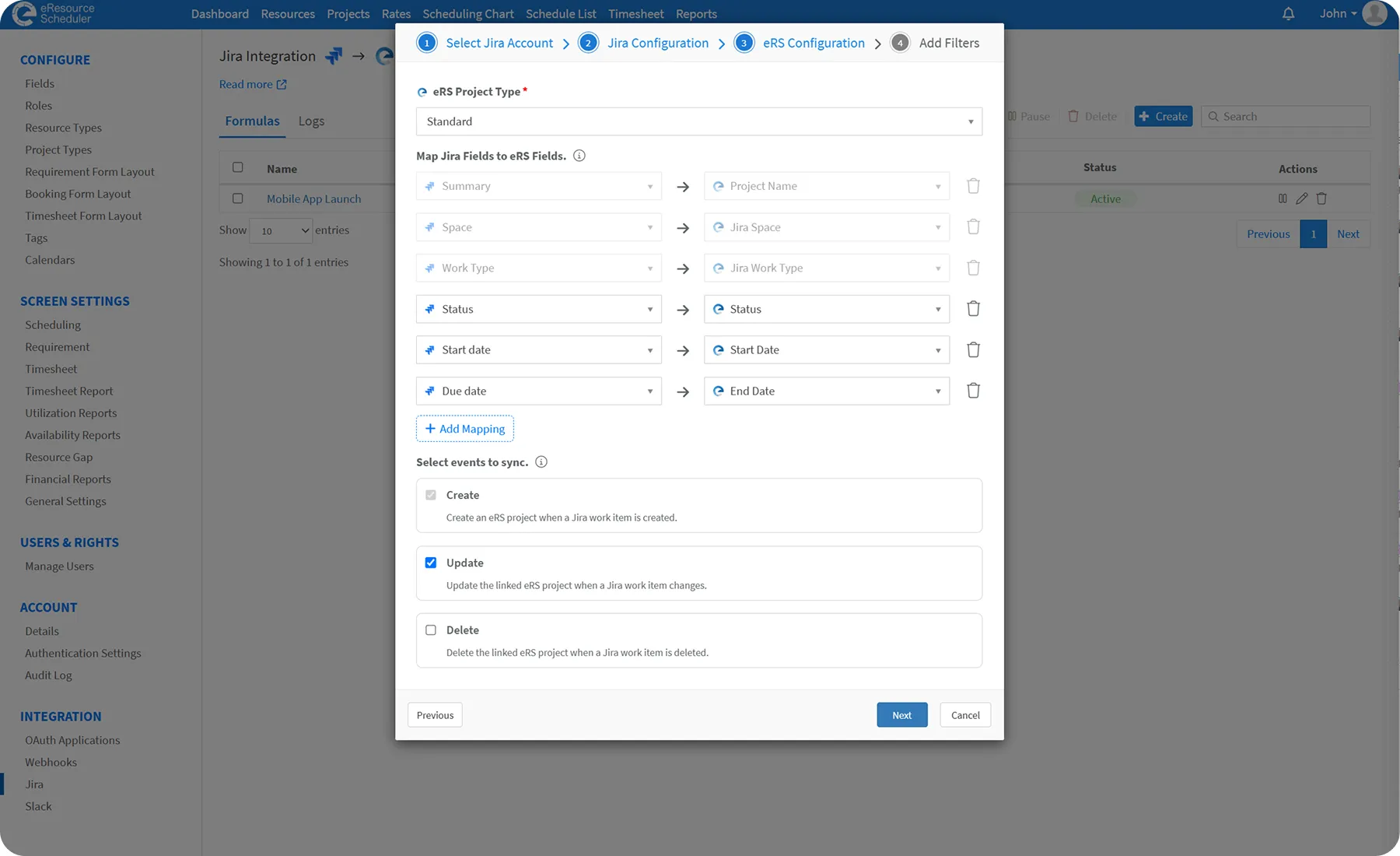
Heads Up: If you skip the filter step, every work item in the selected space and work type will sync by default. It is worth spending a minute narrowing this down before you save, especially if your Jira space is a busy one.
Think about a typical Tuesday before this integration. A work item gets reassigned in Jira. You do not notice it right away. By the time you check eResource Scheduler, the resource plan is already off track. Now you are fixing it while someone waits on an answer.
Here is the same Tuesday after the integration. A work item gets reassigned in Jira. Within moments, it is reflected on eResource Scheduler. No tab switching. No delayed fix. No waiting on you to catch up.
No alerts, no pop-ups, nothing asking for your attention every time a work item changes. If you’re ever curious whether something actually synced, the Logs tab has the answer. It has a running record of every change, ready whenever you want to look.
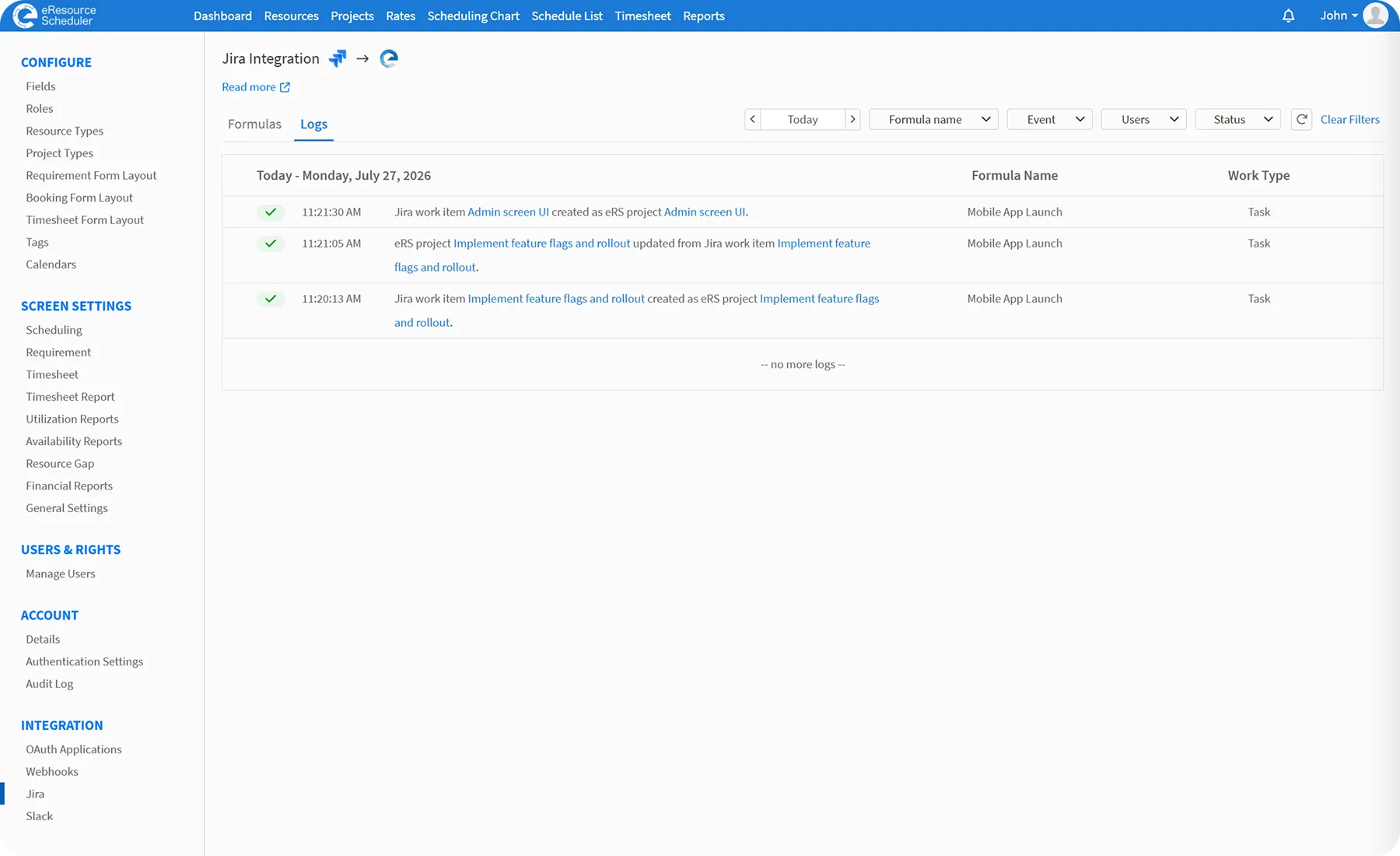
If you want the full walkthrough with every screen explained, the Jira integration support article covers each step in detail.
 ALL FEATURES INCLUDED